User Guide
Explaining the basic usage and feature flow of CourtMaster in 7 steps.
Member Registration & Group Management
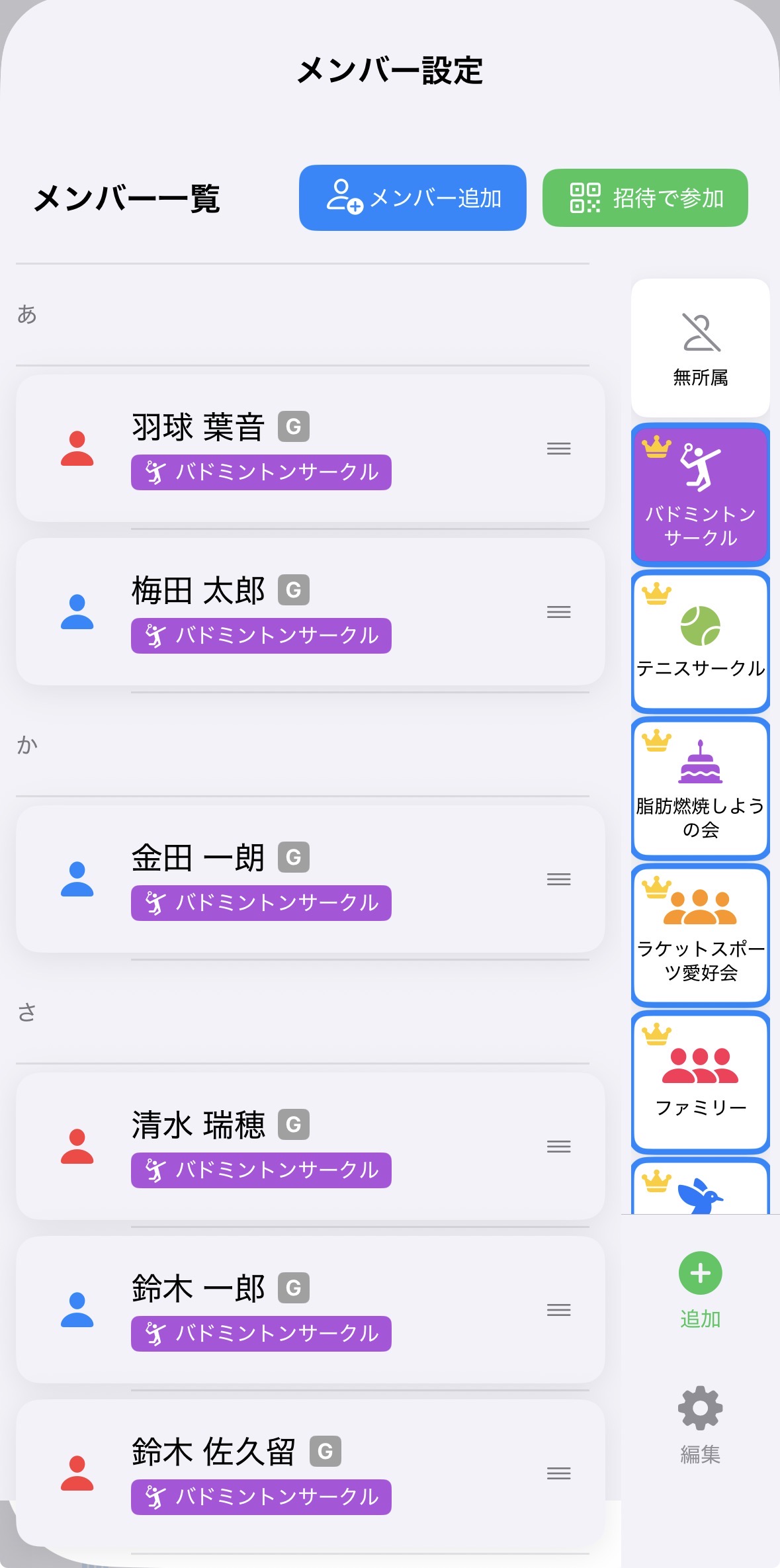
From the "Member Settings" screen, add members to participate in the group.
By simply showing the QR code from the invite button and having them scan it, you can easily add members to the group and centrally manage the entire team.
Free Play Settings
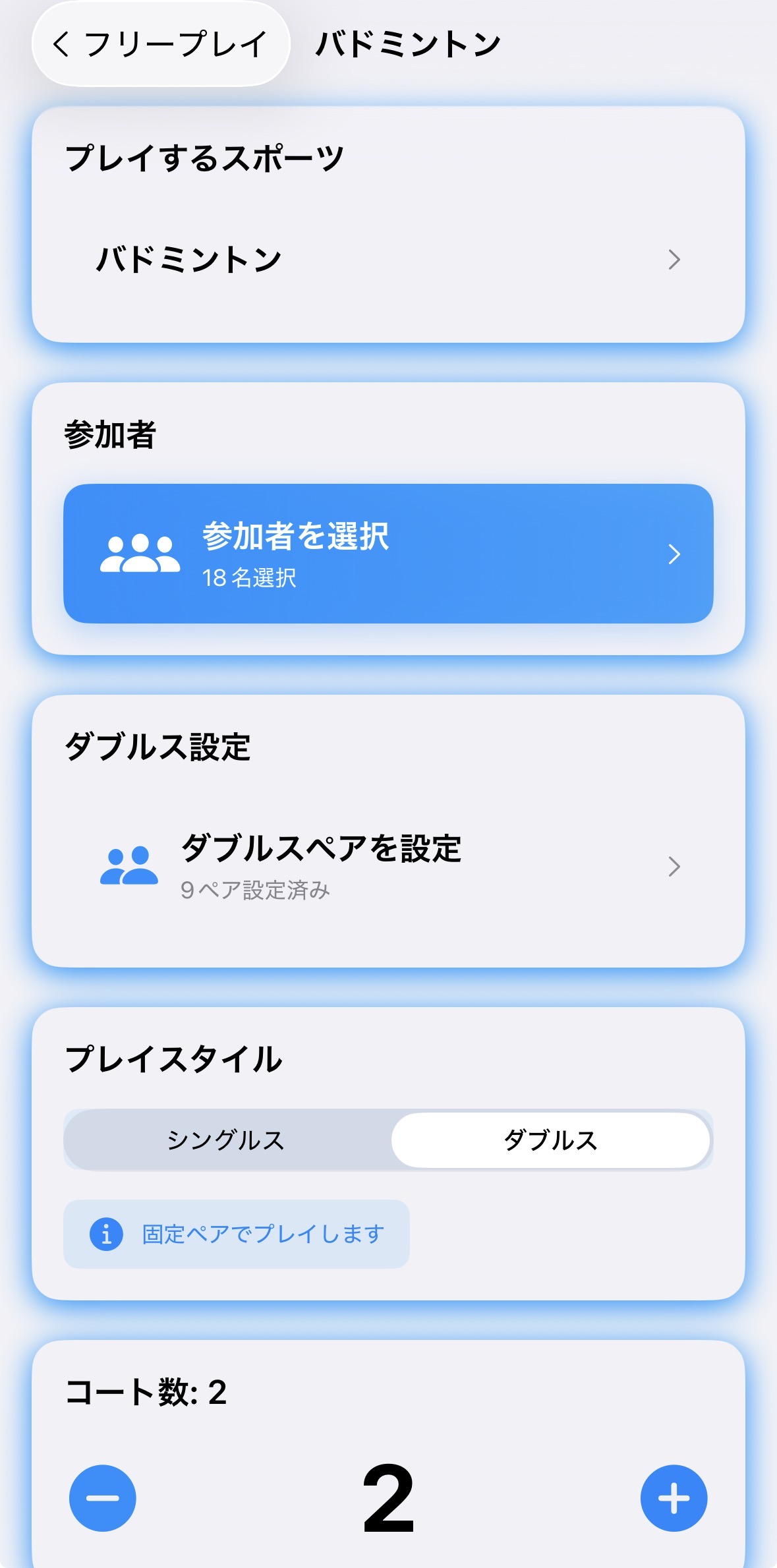
Perform the basic settings before starting a match.
Set the sport to play, participants of the day, number of operating courts, etc.
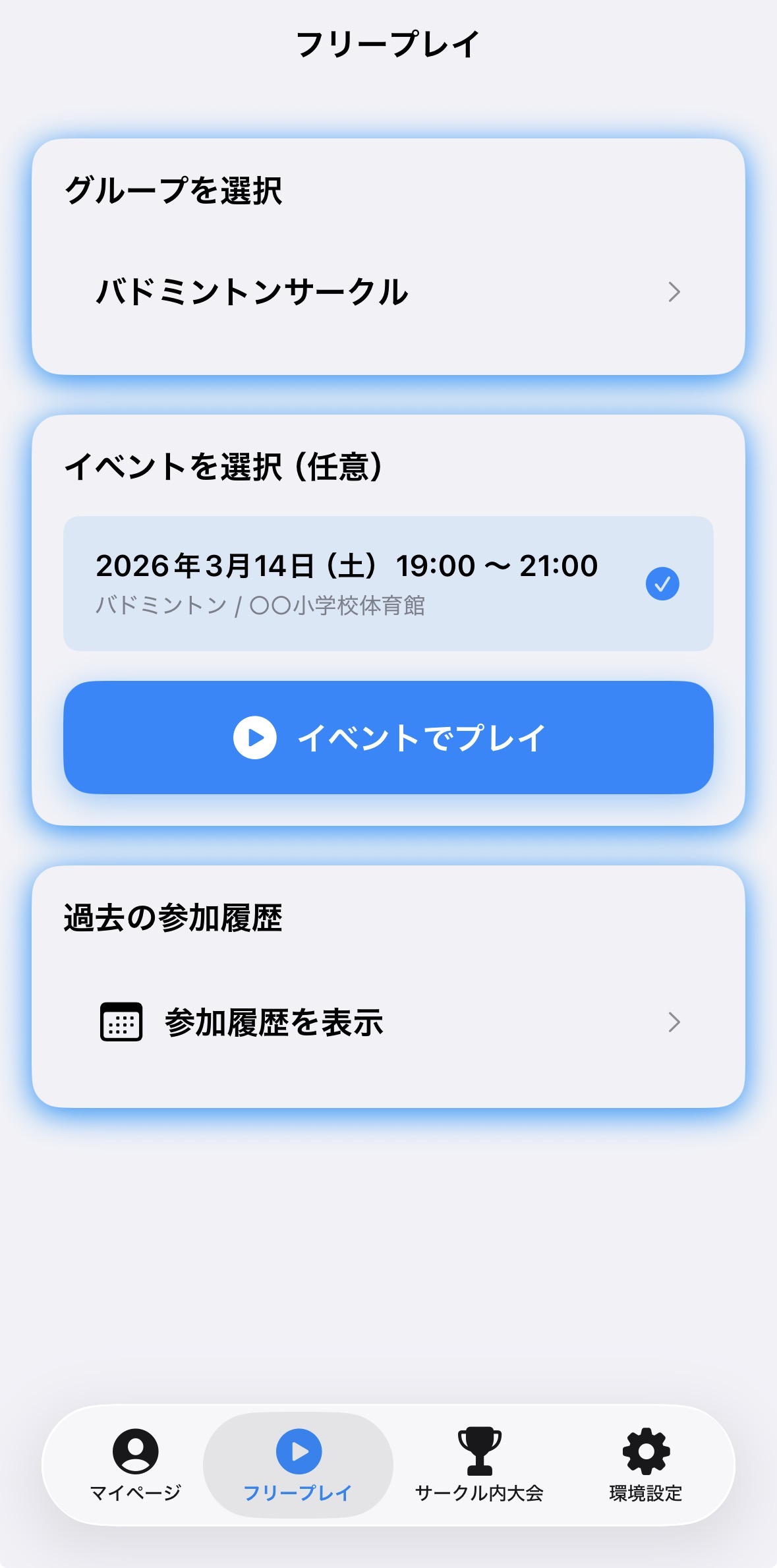
You can link play to a specific "Group" or "Event (e.g., practice slot)".
If there is an ongoing session (activity), selecting that session and tapping "Start Play" will carry over the participation history up to that point.
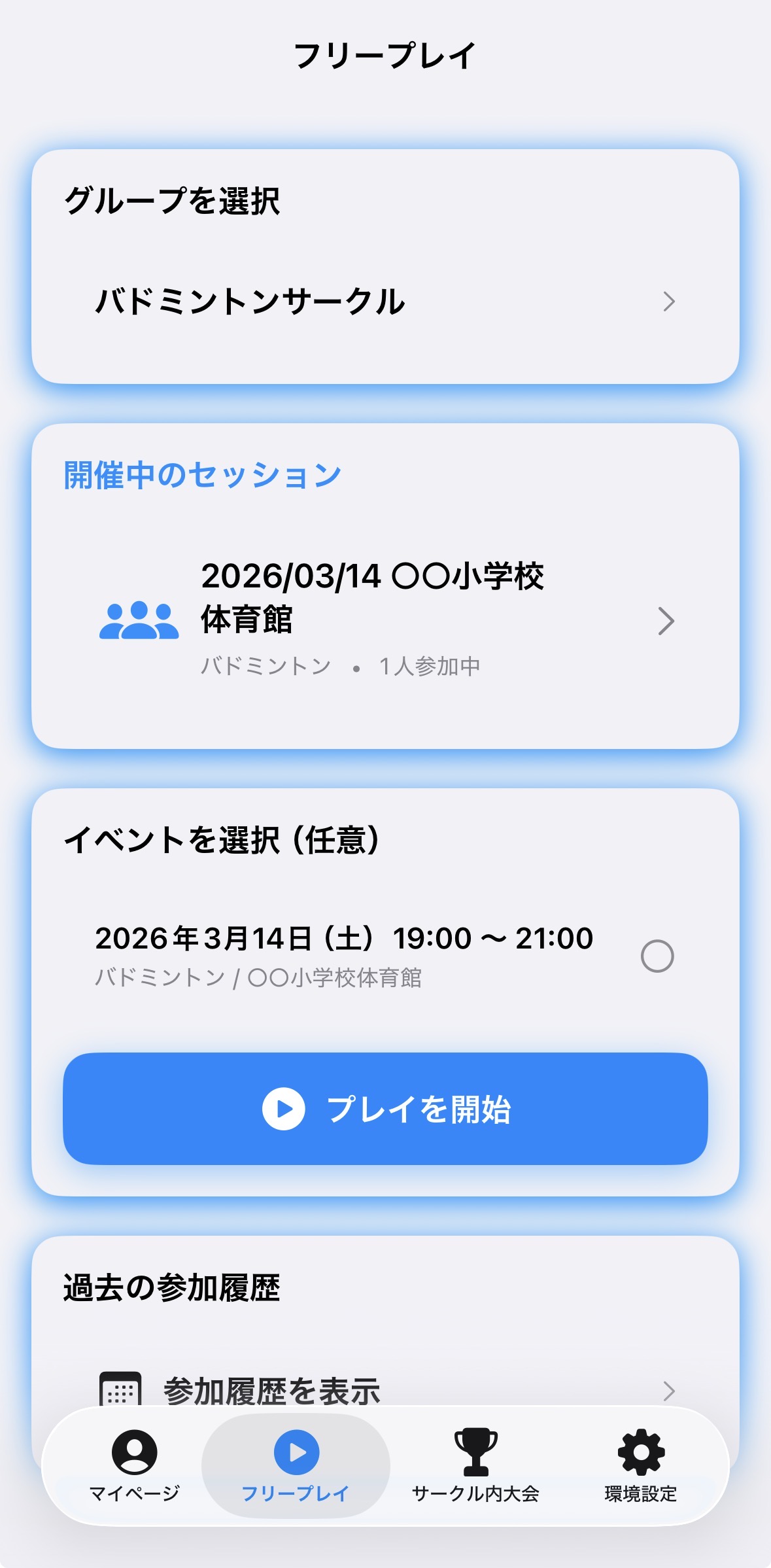
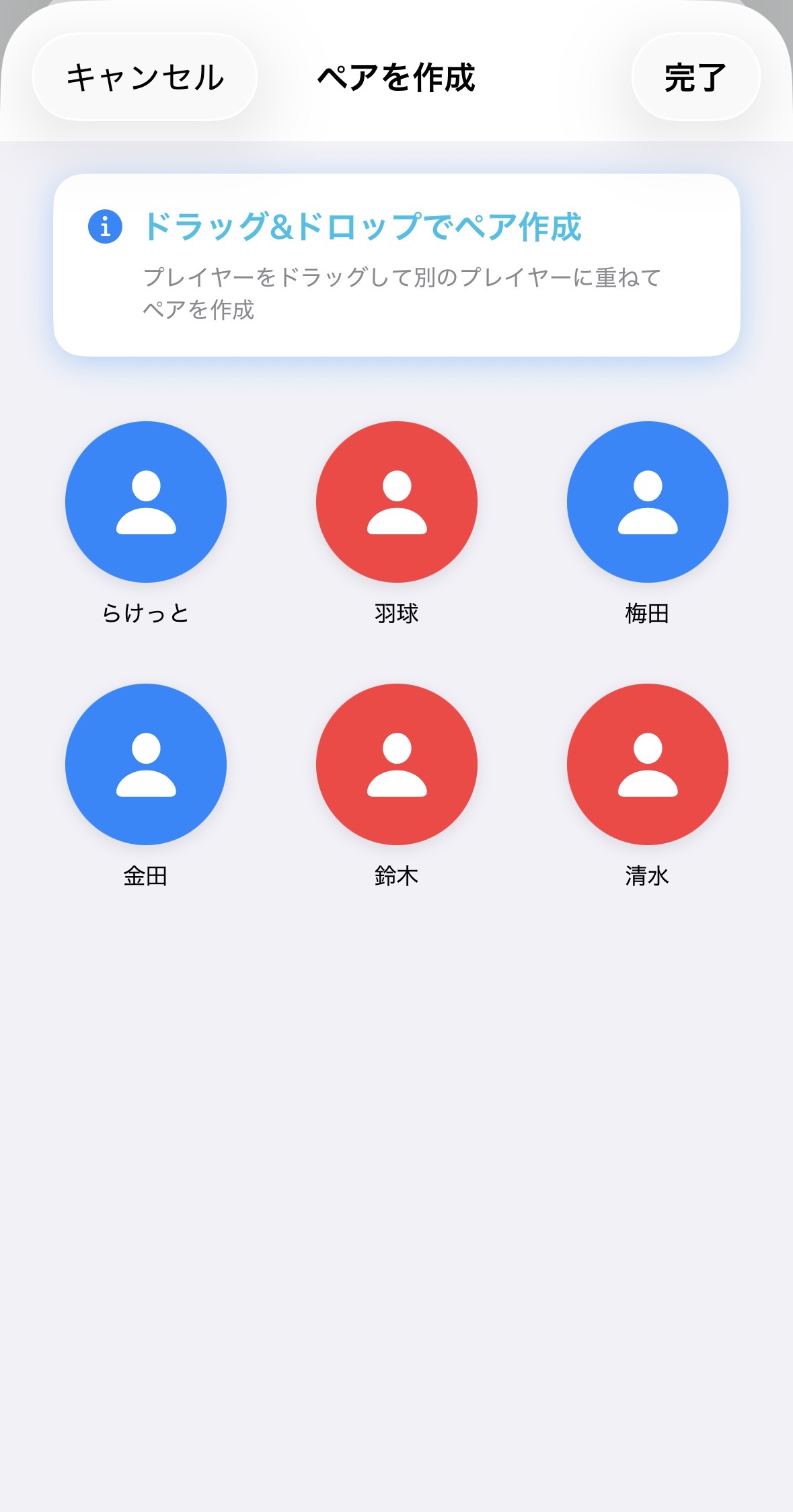
Manual Pair Creation & Adjustment
If you want to form pairs freely, simply drag and drop a player's icon onto another player on the screen to create pairs intuitively.
You can visually and quickly set who pairs with whom.
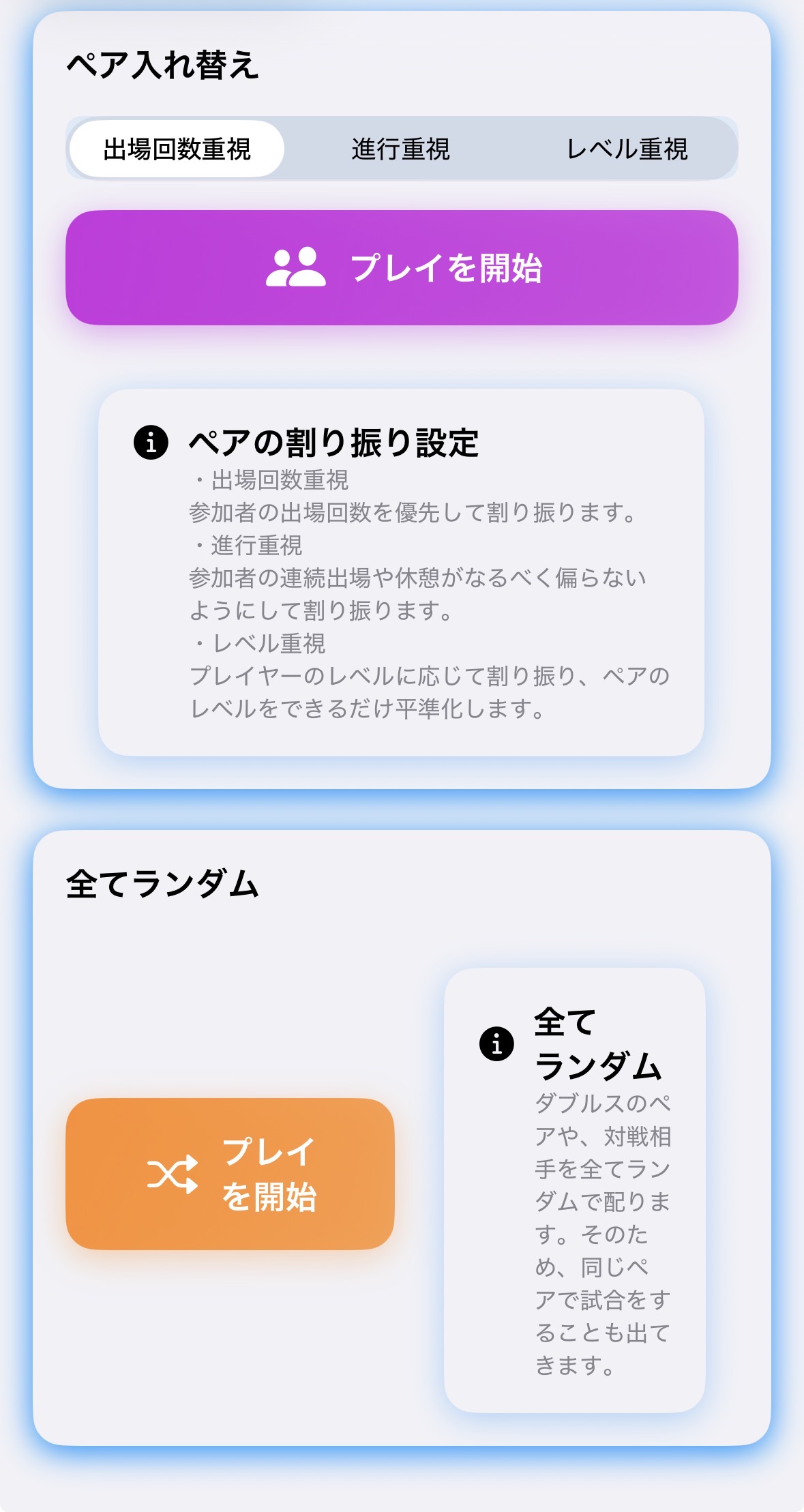
Automatic Pair Rotation
You can also let the app handle pairing.
Select allocation logic tailored to the day's purpose or situation, such as "Focus on Participation Count", "Focus on Progression (Preventing uneven breaks)", "Focus on Level (Equalizing ability)", or "Completely Random", and start playing.
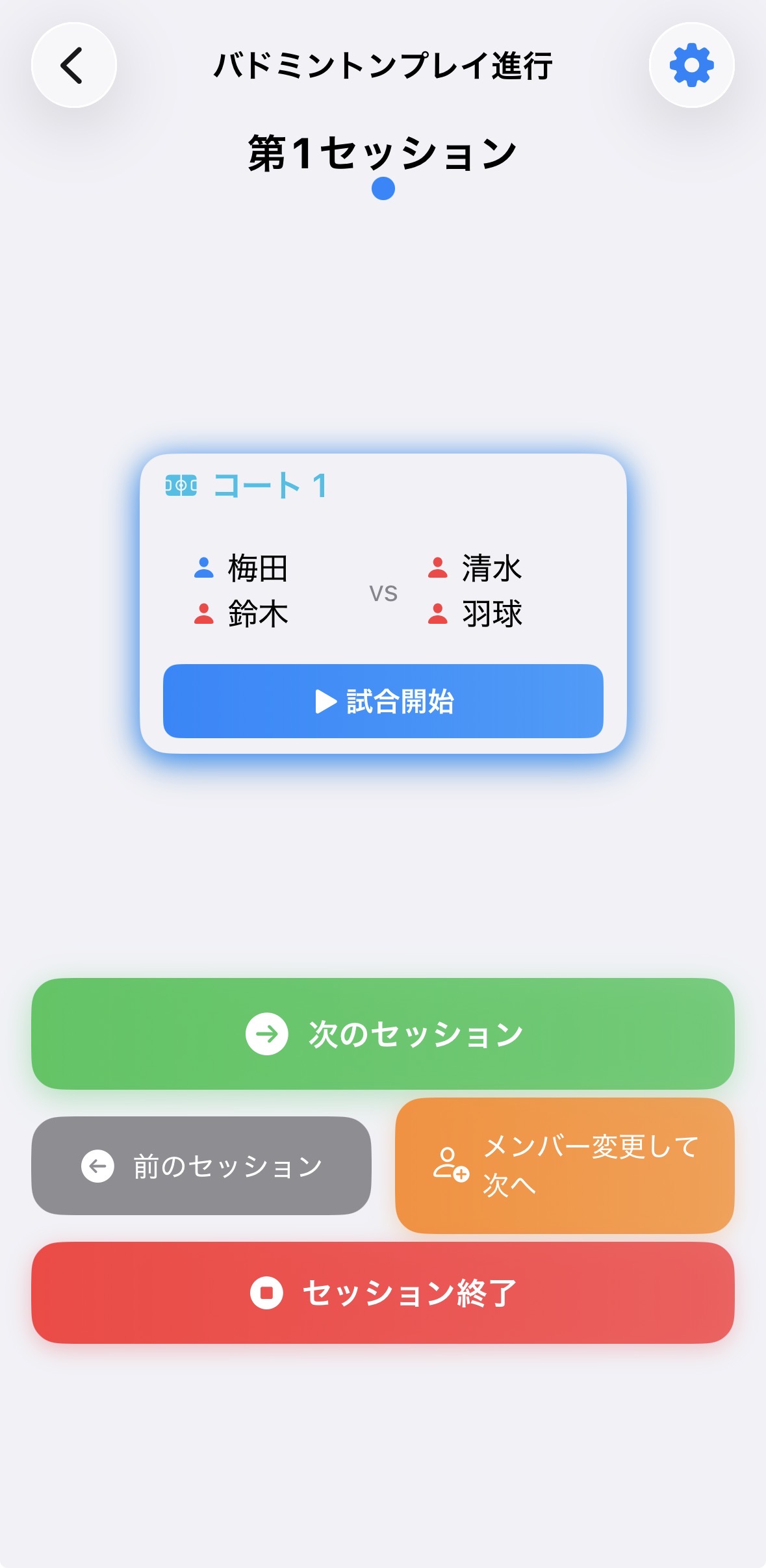
Play Progression and Court Status Overview
A clear list displays who is playing on which court and against whom.
Tap "Start Match" sequentially from the courts that are ready to progress the games.
When moving the activity to the next time slot or group, select "Next Session" to proceed.
Rule Settings
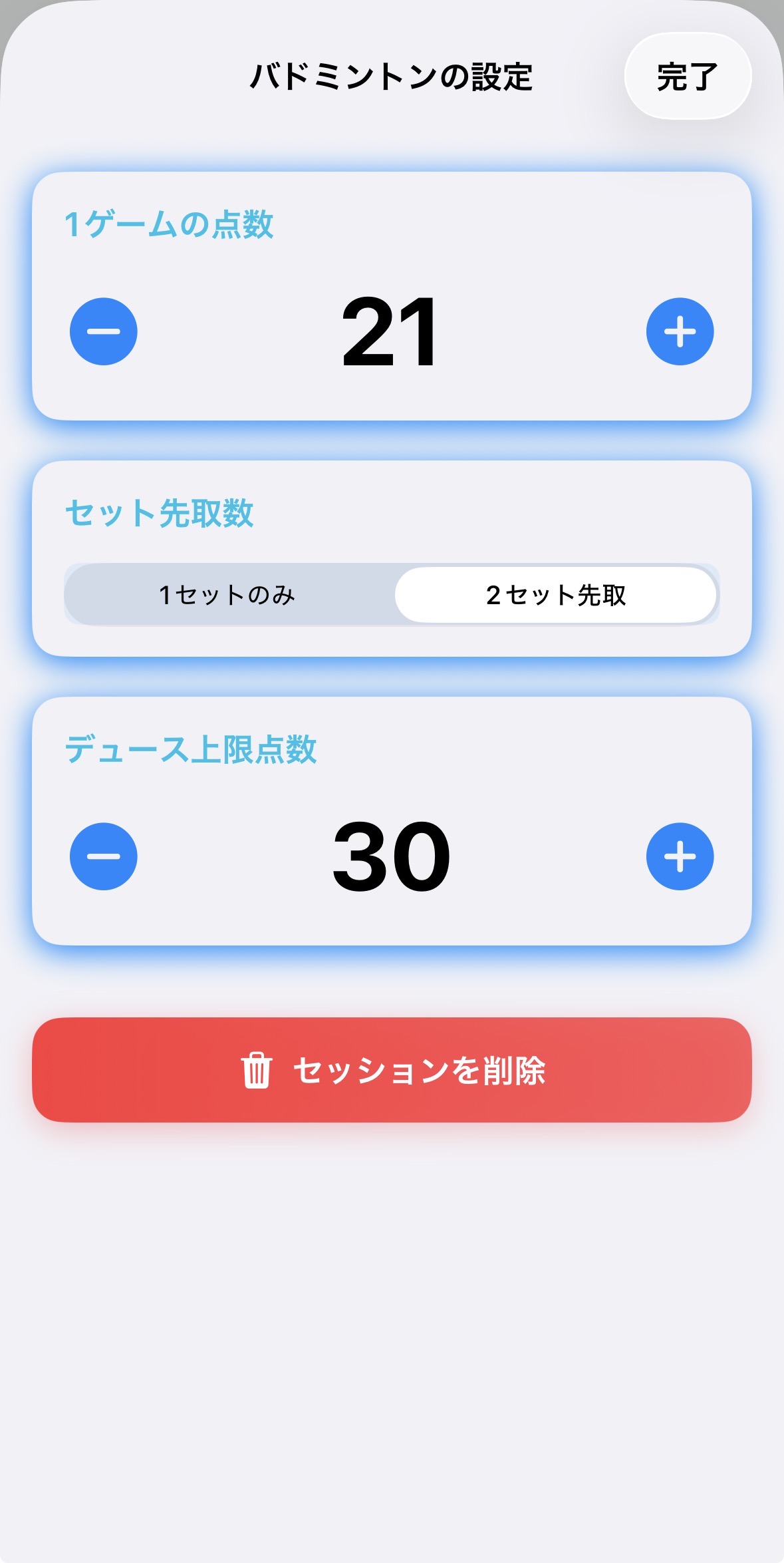
From the gear icon (Preferences) at the top right of the screen, you can fine-tune the rules to match the sport of the day.
Points per game, number of sets required to win, deuce limit points, etc. can be freely customized to fit practice or tournament requirements.
Scoreboard and Positioning Management
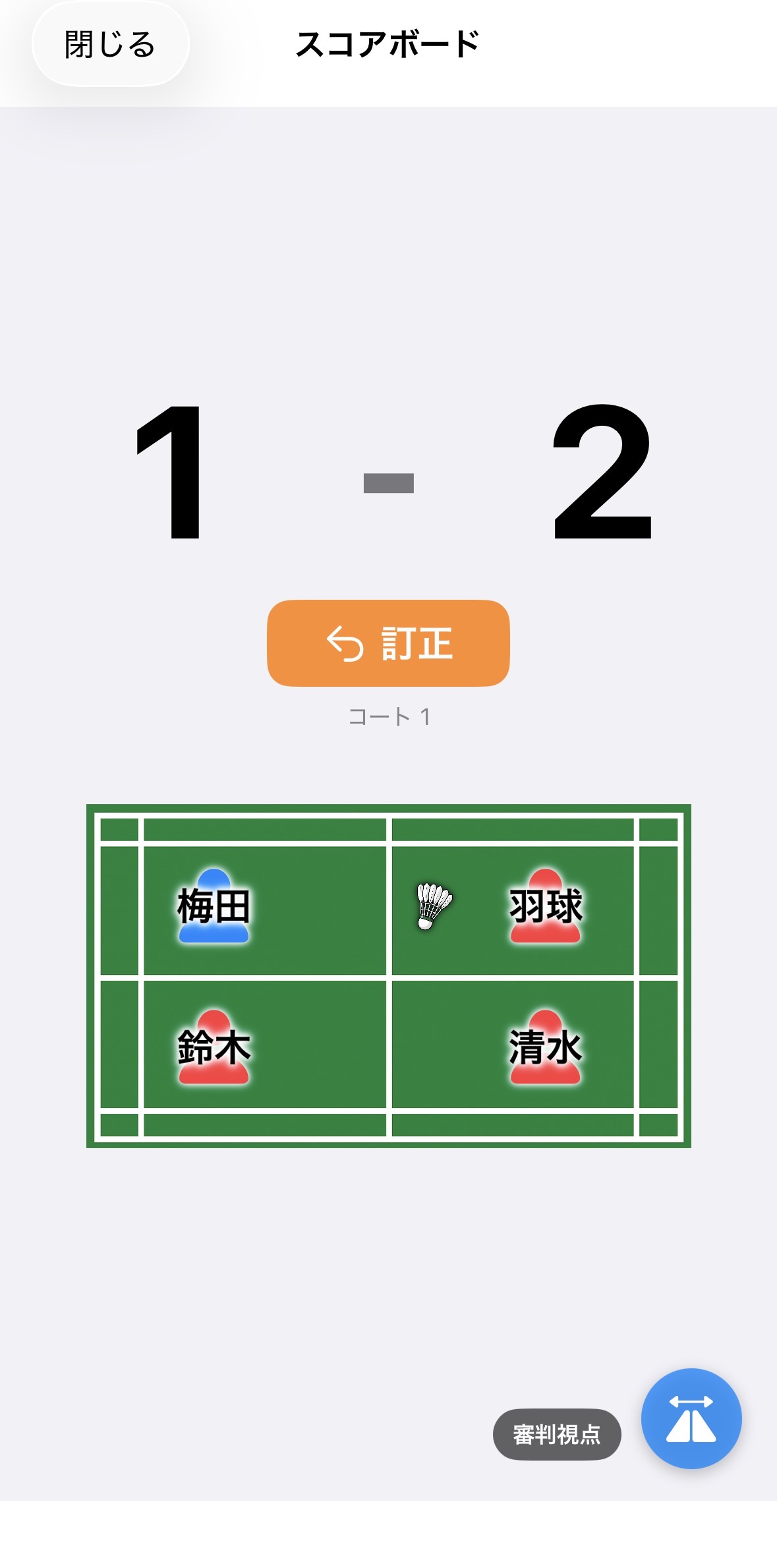
Once the match starts, record points on a full-fledged scoreboard.
On the court screen at the bottom, each player's standing position (front/back, left/right) and server rights are displayed, allowing you to visually confirm at a glance who is positioned where. This reduces mistakes in point operations and supports accurate recording.